Step 1
Move the pattern
Drag with two fingers to move the pattern around the projection area.
Step 2
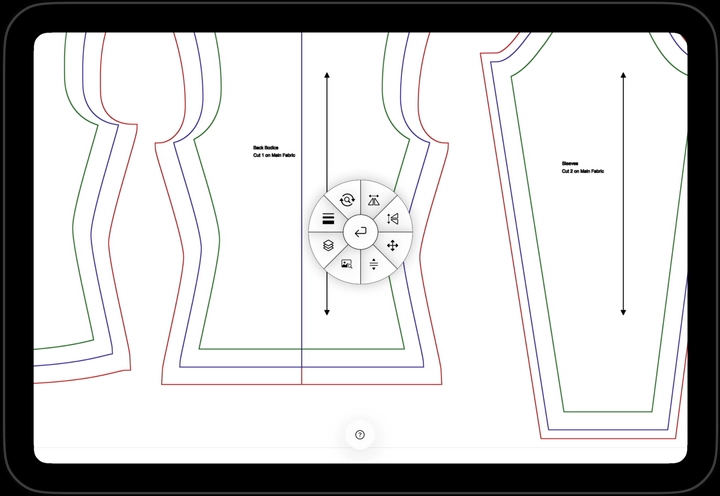
Open the radial menu
Tap anywhere on the pattern to open the radial menu at that location.
Step 3
Move the radial menu
Touch and hold the center button, then drag to move the radial menu.
Step 4
Position the pattern precisely
Open the precision move menu to place the pattern exactly where you want it.
Step 5
Flip the pattern
Flip the pattern horizontally or vertically. The selected icon turns pink to show which axis is flipped.
Step 6
Resize the pattern
Tap the rotate/zoom button to open the zoom menu. Zoom in or out to make the projected pattern larger or smaller. You can also enter an exact zoom percentage manually.
Step 7
Rotate the pattern
You can also rotate the pattern to align it with the fabric grain line. You can enter an exact rotation angle manually.
Step 8
Reset the view
Reset the pattern to the position, size, and orientation it had when it was first loaded.
Step 9
Exit projection view
When you are finished projecting, touch and hold the center button until the green circle fills to exit projection view.
Continue learning
Keep going with the next part of your setup or explore a related guide.