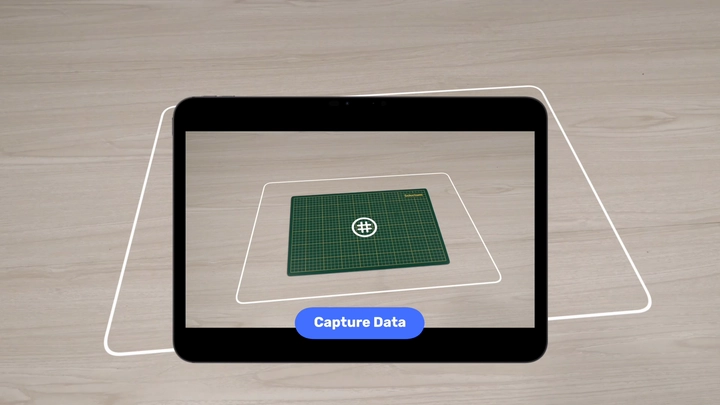
Step 1
Choose your mat spacing
Choose the grid spacing printed on your cutting mat: 1 centimeter, 1/2 inch, or 1 inch.
Step 2
Position the cutting mat
Place the mat inside the projection area outlined by IntelliSew. Adjust the projector’s height and position so the mat is centered and the projection covers the area you plan to use.
Step 3
Frame and capture the mat
Point your device’s camera toward the cutting mat and position it so the entire mat is visible. Hold your device still, then select Capture. Continue holding it steady while IntelliSew processes the image.
Step 4
Review the preview
Check the initial calibration preview. It only needs to be close at this stage; you will correct small alignment errors in the next steps.
Step 5
Adjust the calibration size
Use the on-screen controls to move the bottom-left corner so it roughly matches your physical mat, then repeat for the top-right corner.
Step 6
Refine the corners
Check all four corners on the refine calibration screen. Select and nudge any corner that is slightly out of alignment.
Step 7
Finish
When the projected grid aligns with your cutting mat, hold the return button to exit. IntelliSew saves the calibration, so you do not need to repeat it each time you use the app.
Continue learning
Keep going with the next part of your setup or explore a related guide.
Next step
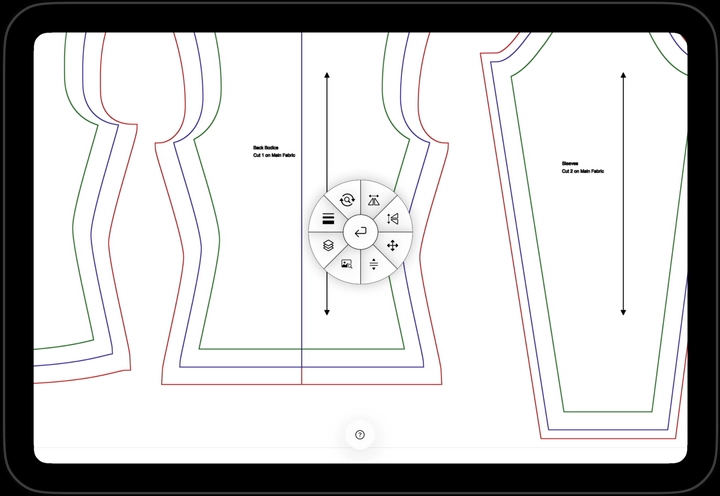
Pattern Navigation.
Move, position, resize, rotate, and flip patterns in projection view.
Related tutorial
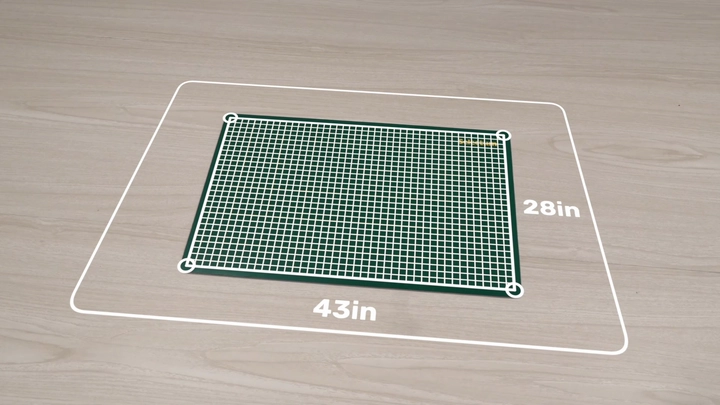
Four-Corner Calibration.
Calibrate your projector by aligning four points on your cutting mat.
Related tutorial
Projector Calibration Guide.
Learn how projector calibration works, choose a calibration method, and troubleshoot common problems.