Step 1
Choose the right cable or adapter
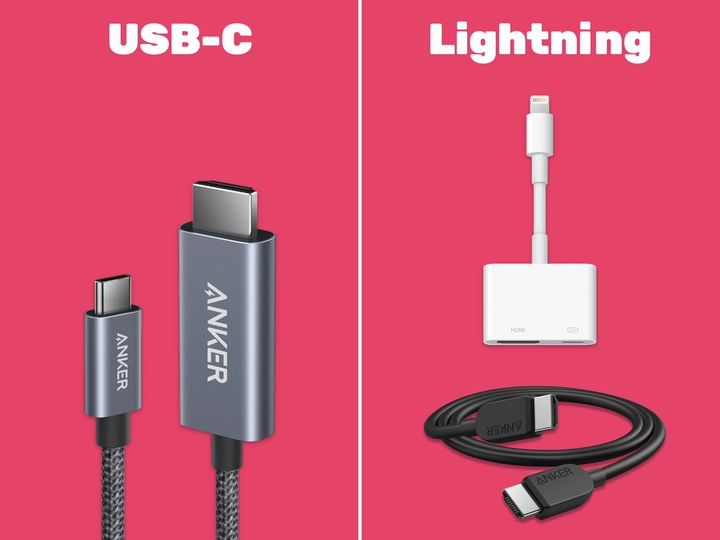
Check the charging port on your iPhone or iPad.
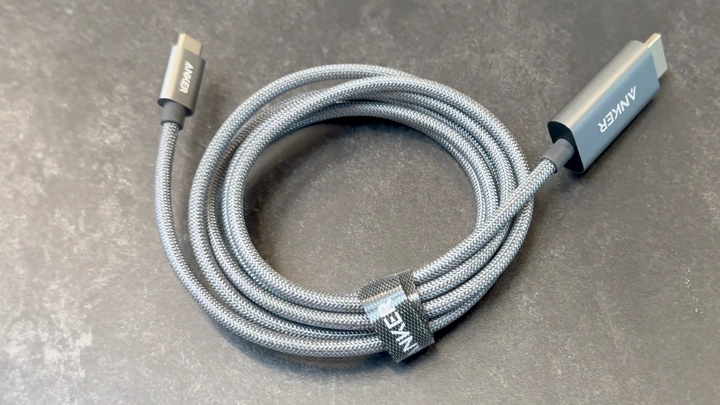
- USB-C: Use a USB-C to HDMI cable (Amazon). No separate HDMI cable is needed.
- Lightning: Use an Apple Lightning Digital AV Adapter (Amazon or Apple Store) and an HDMI cable (Amazon).
Step 2
Connect to the projector
Locate the HDMI input on your projector and plug in the HDMI end of the cable. Turn on the projector and select the appropriate HDMI input.
Step 3
Connect to your iPhone or iPad
- USB-C: Plug the USB-C end of the cable directly into your iPhone or iPad.
- Lightning: Connect the HDMI cable to the adapter first, then plug the adapter into your iPhone or iPad.
Step 4
Confirm the connection in IntelliSew
In the IntelliSew app, the projector icon should turn green. On your cutting surface, you should see an outline marking the projection area and a “Projector Connected” message.
Continue learning
Keep going with the next part of your setup or explore a related guide.