1
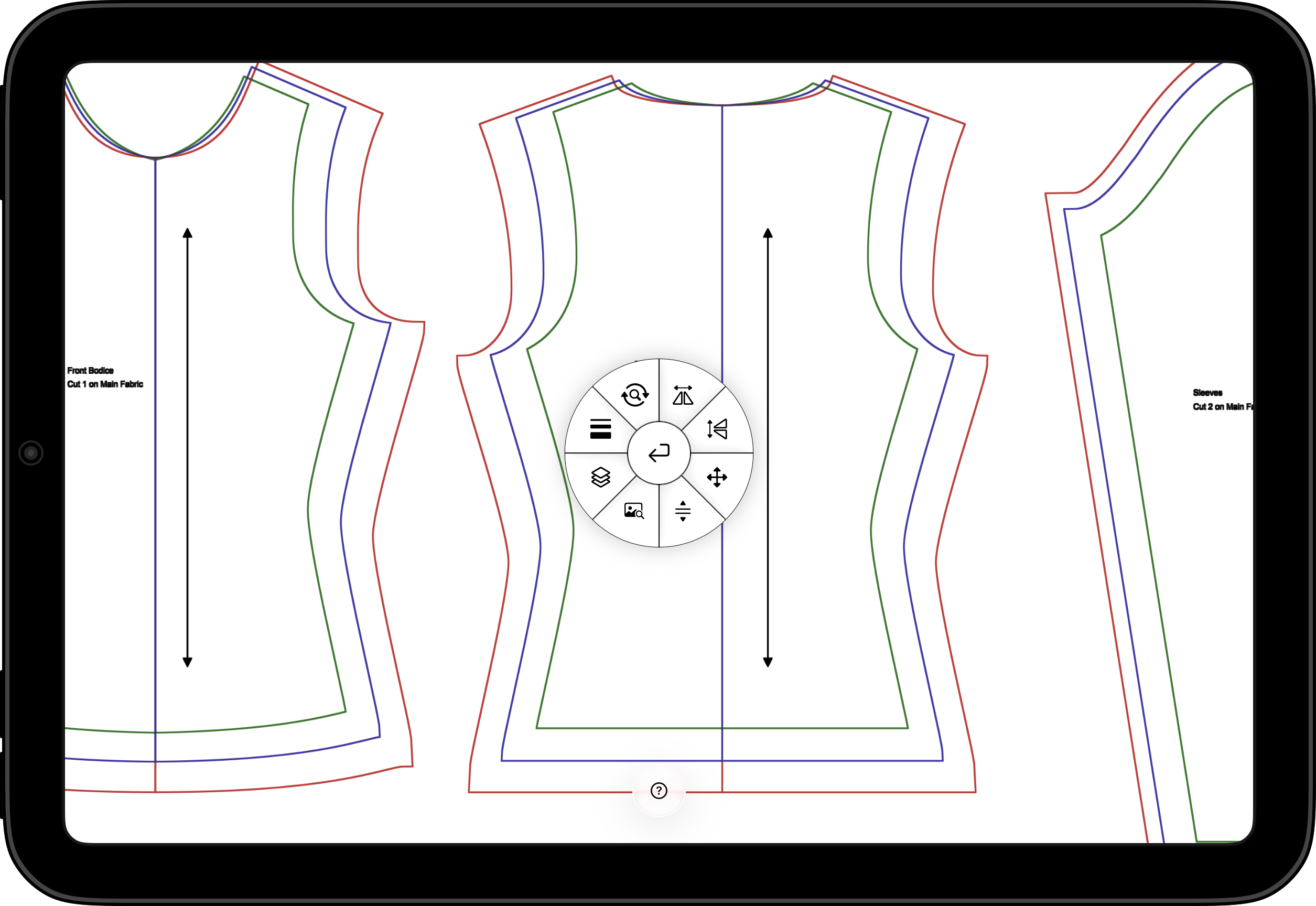
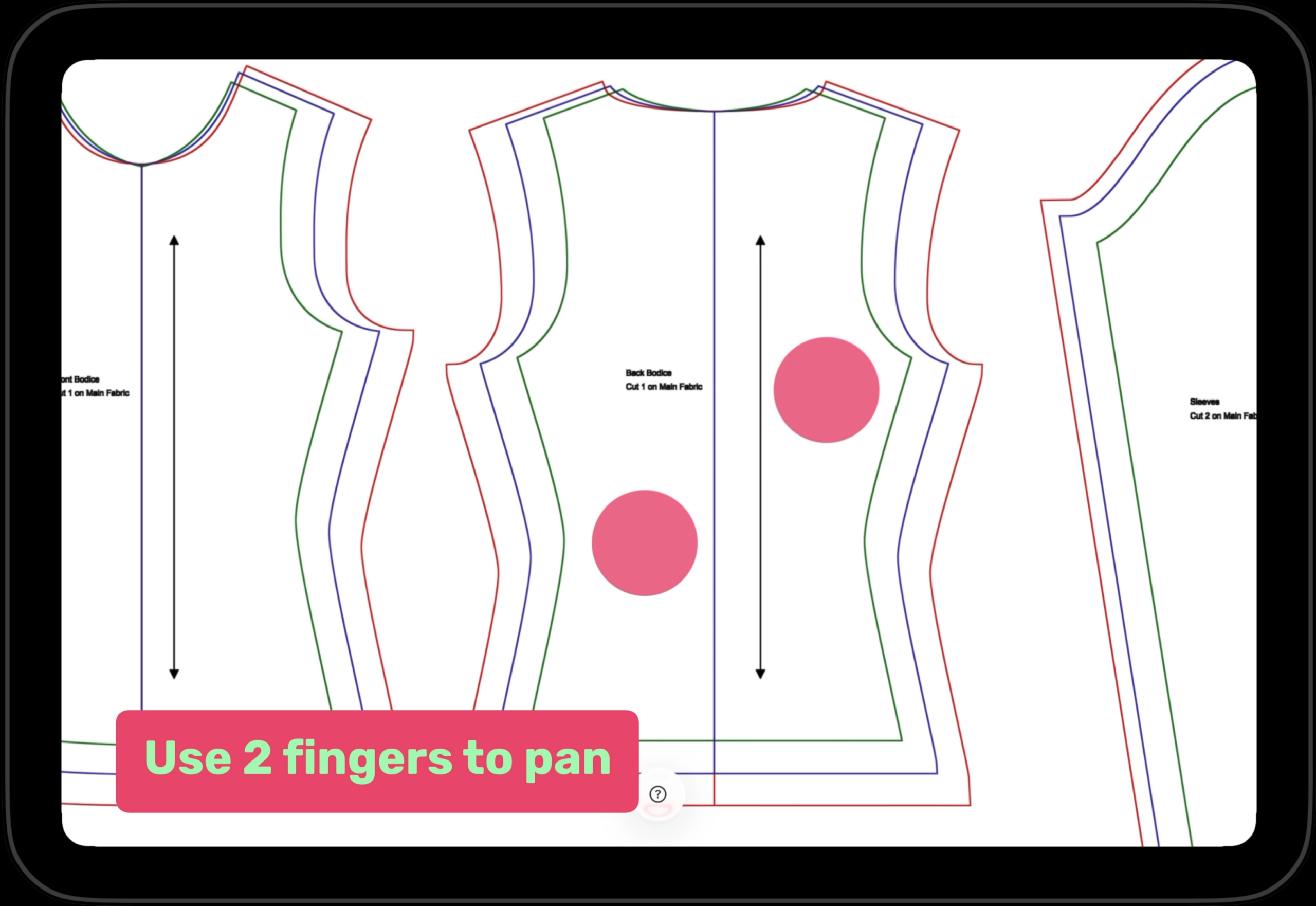
Use 2 fingers to move pattern
To move the pattern around, use 2 fingers to drag and move the pattern
2
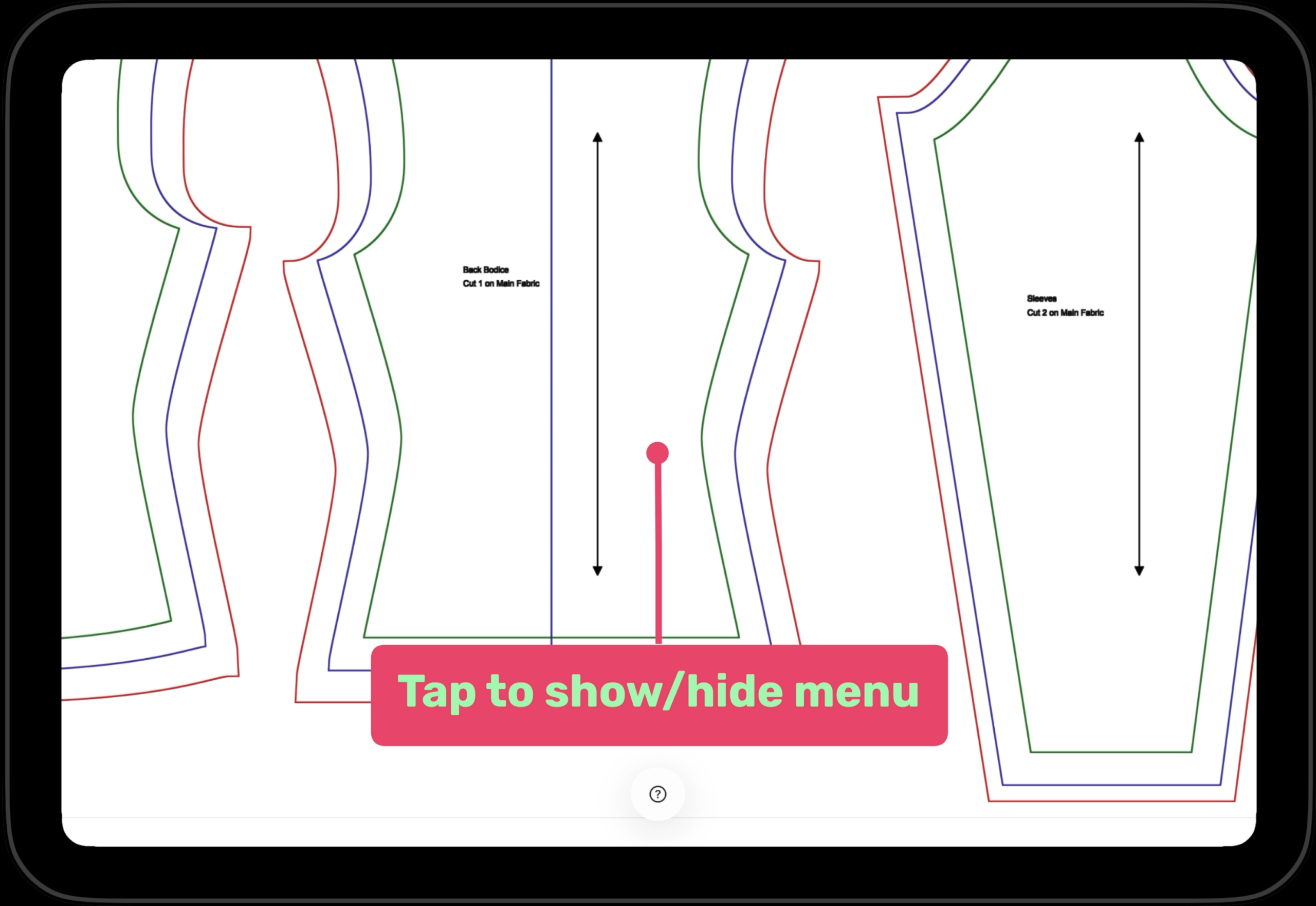
Tap to bring up menu
To bring up the menu, simply tap where you want the menu to show up
3
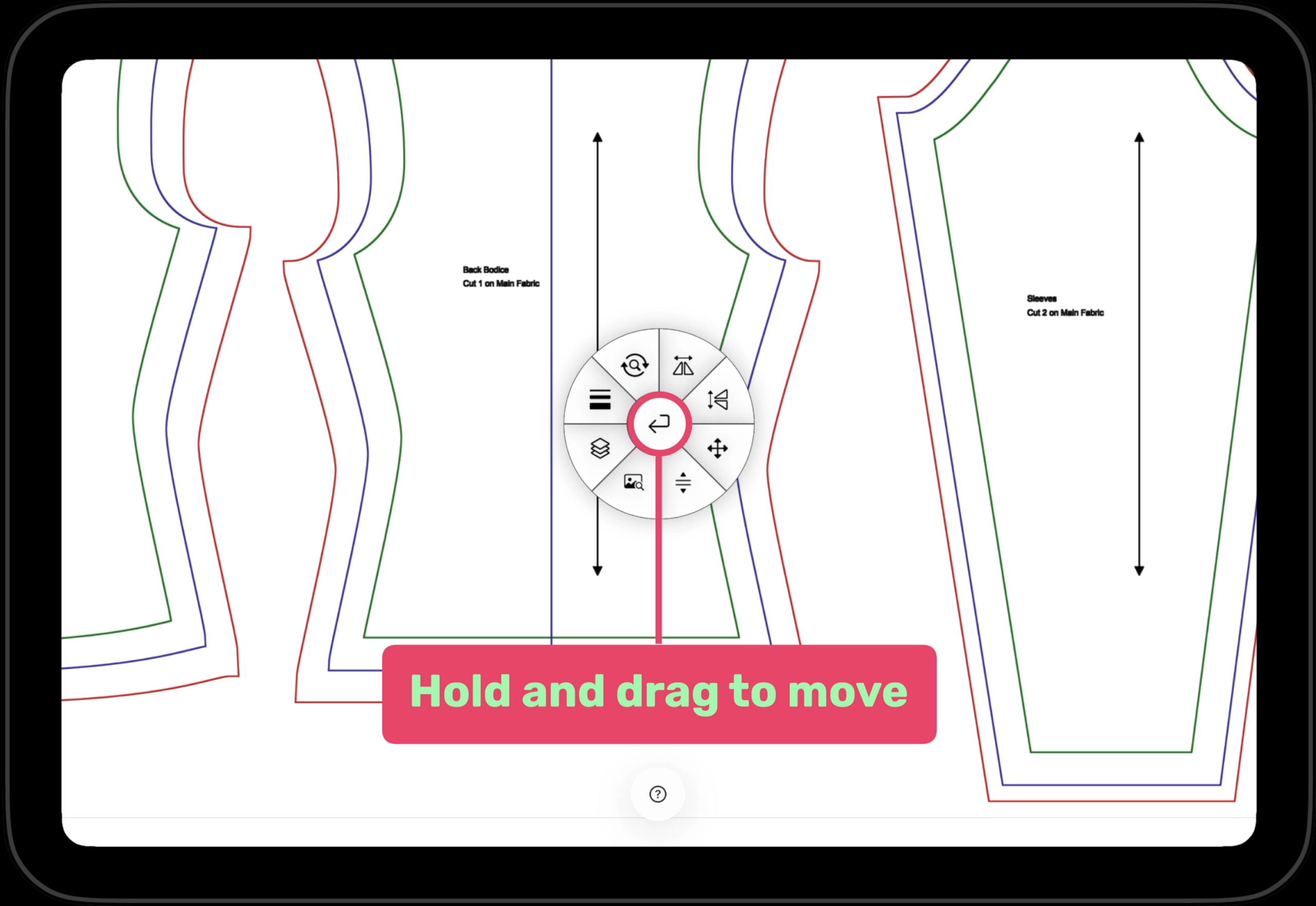
Moving the menu
To move the menu, simply hold and drag the center button on the radial menu
4
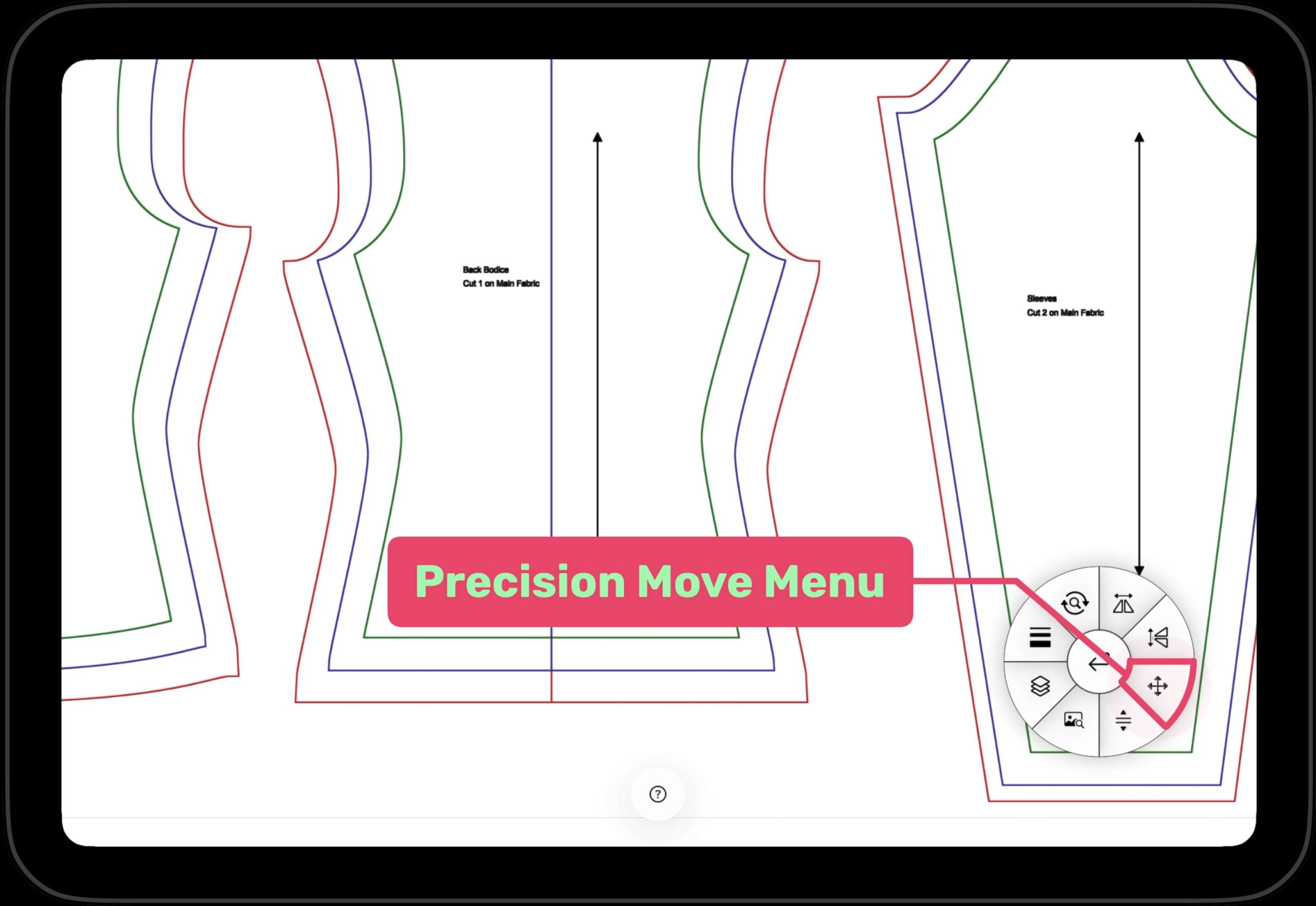
Precision Move Menu
The precision move menu allows you to place the pattern exactly where you want.
5
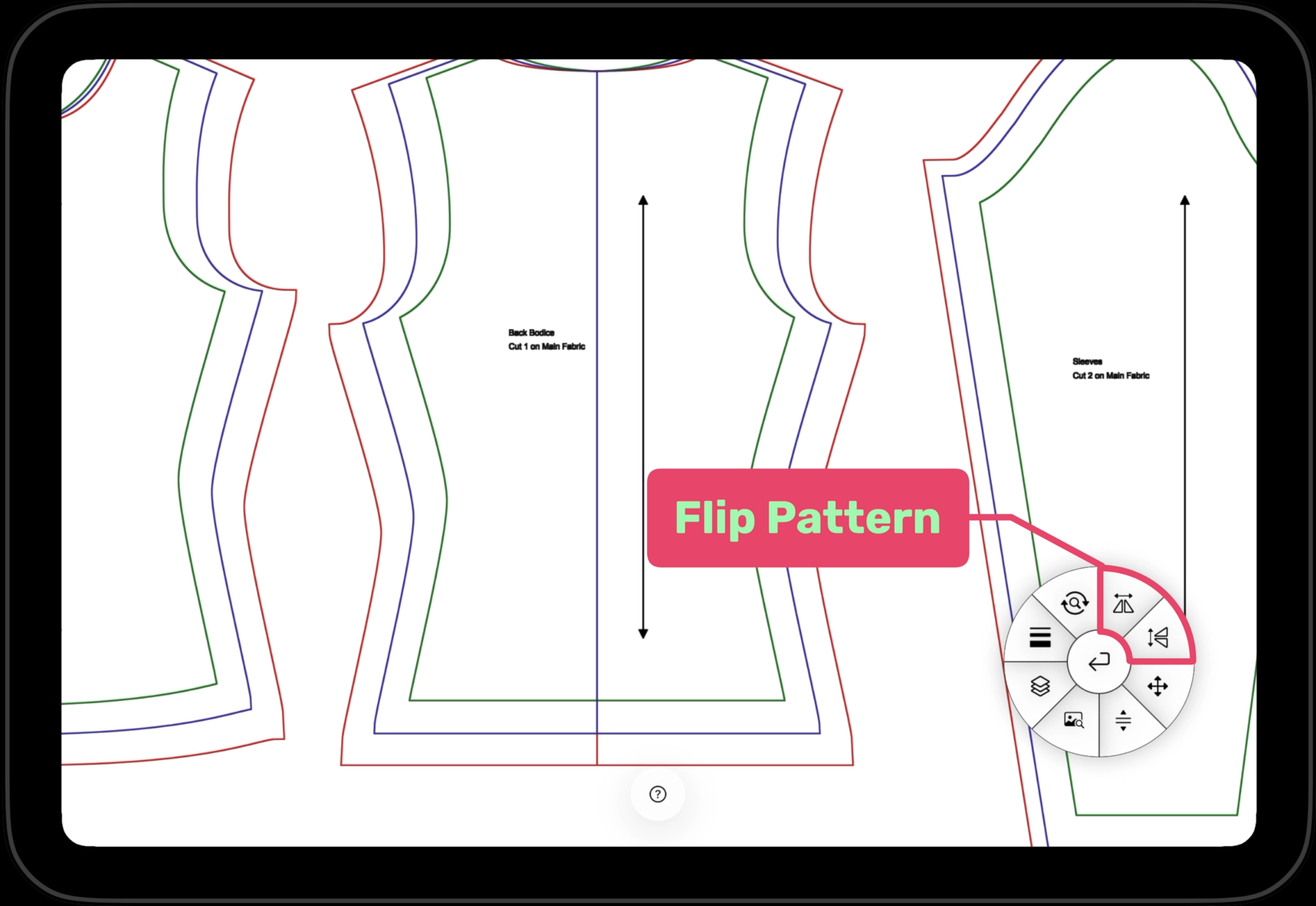
Flip Pattern
Flip the pattern horizontally or vertically. The icon will turn pink to show which axis is flipped.
6
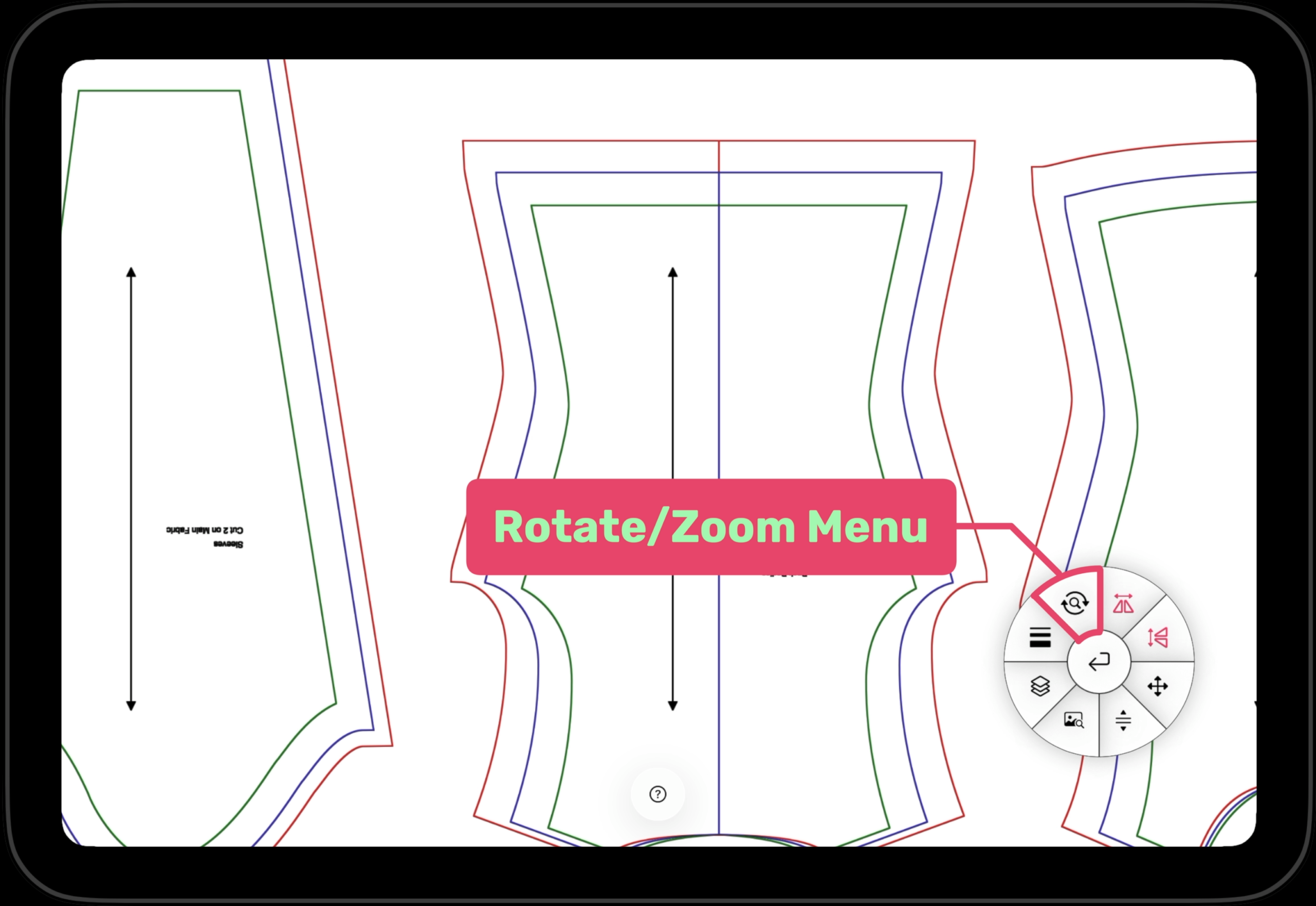
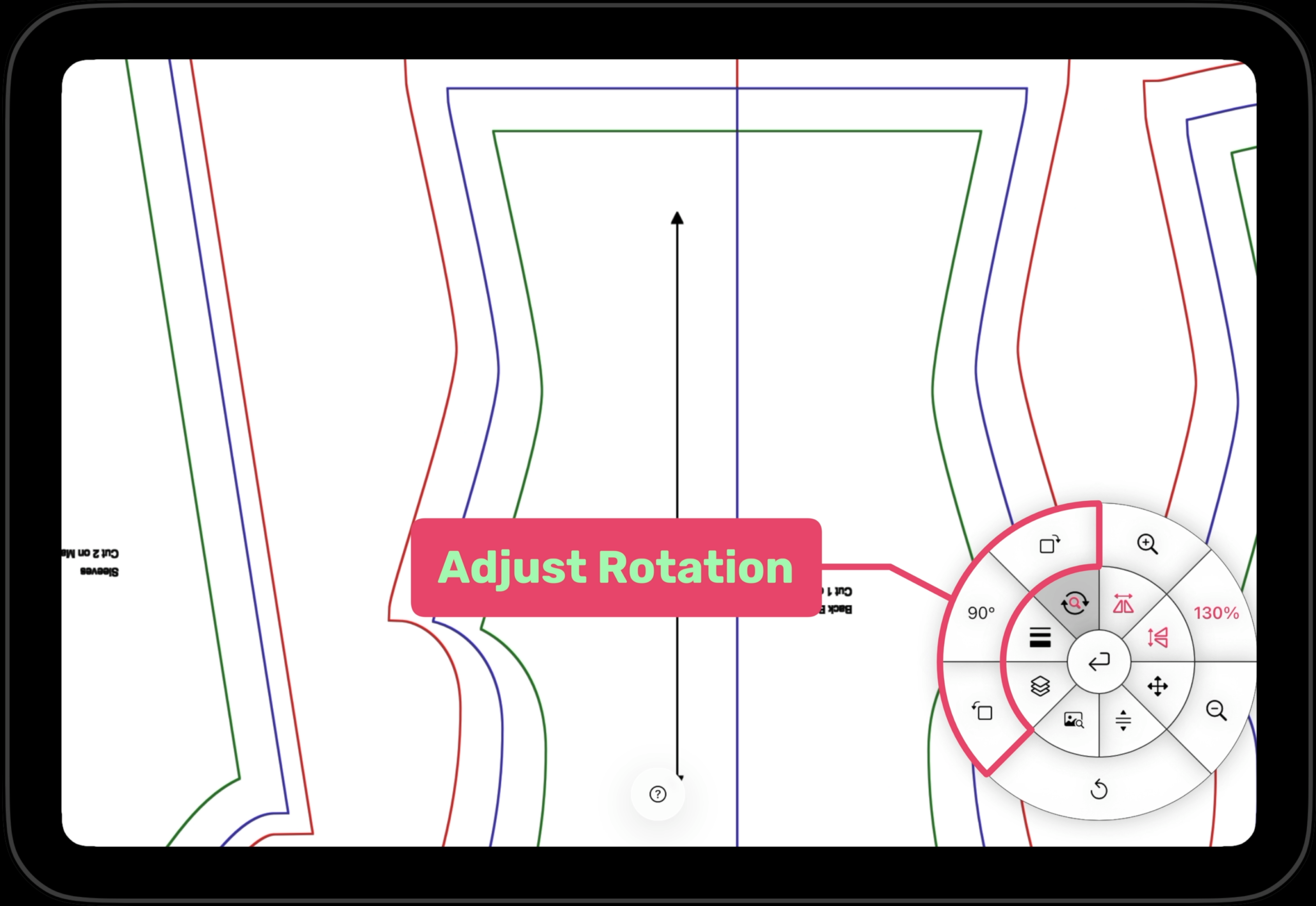
Rotate/Zoom Menu
Bring up the rotate/zoom menu to rotate/zoom a pattern
Zoom in/out the pattern to adjust its projected size. This is useful if you want to make certain pattern larger or smaller. You can also set the zoom percentage manually.
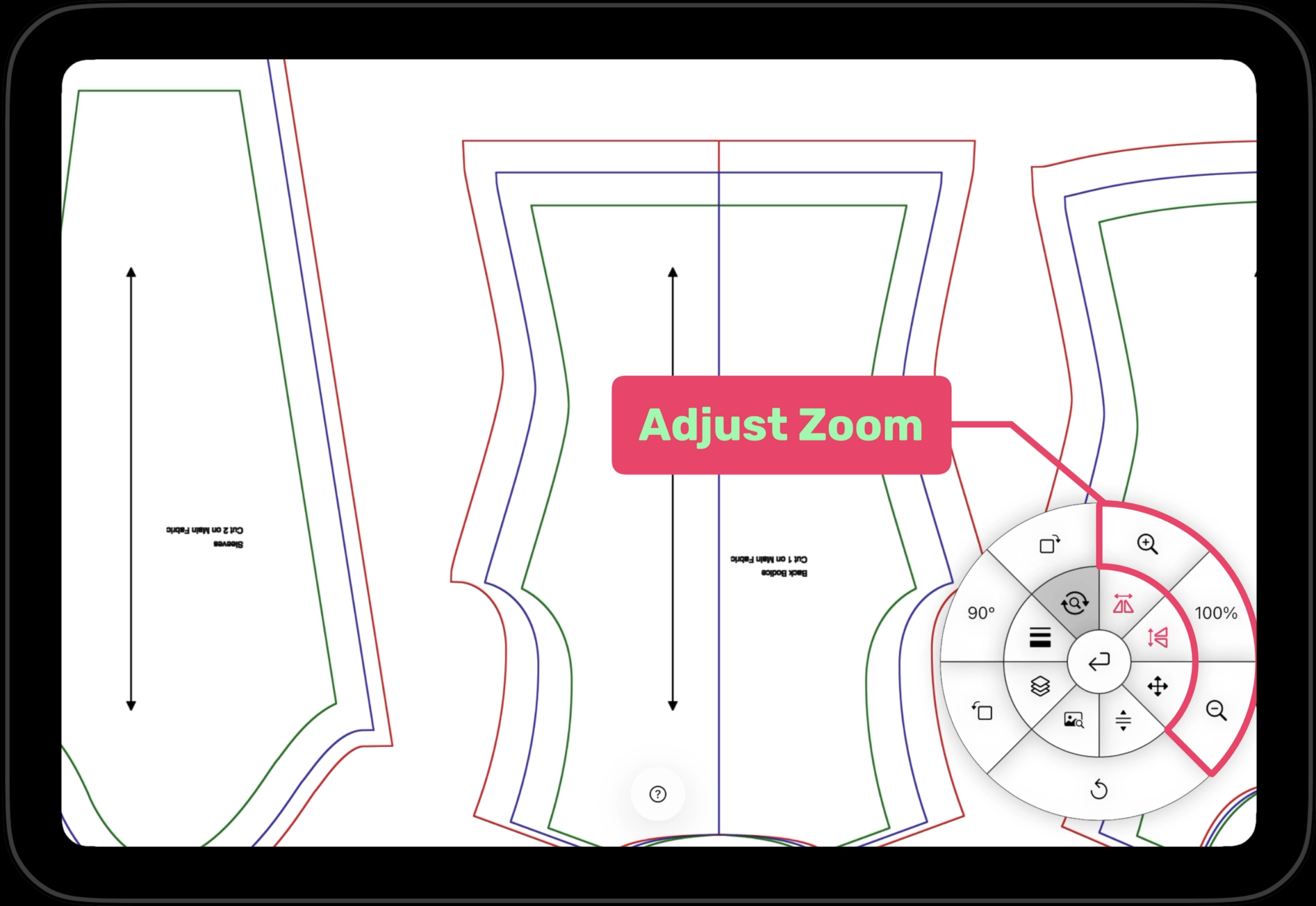
Rotate your pattern to align with the grain line. You can also explictly set the rotation amount
7
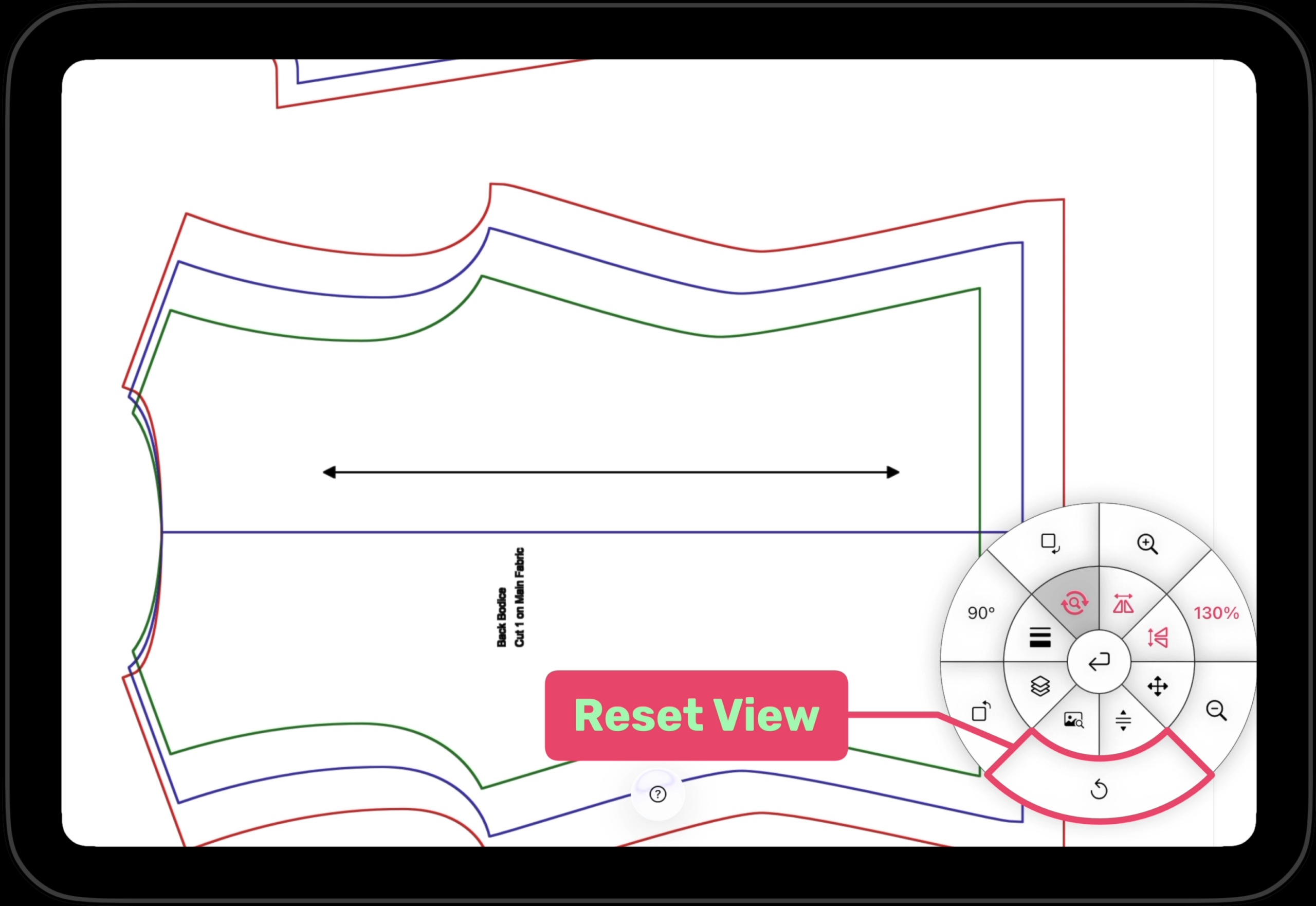
Reset View
Reset view restores the pattern back to the orientation when it was first loaded.
8
Exit Projection View
Once you are done projecting, you can hold the center button until the green circle fills up and you will exit projection mode.
