Step 1
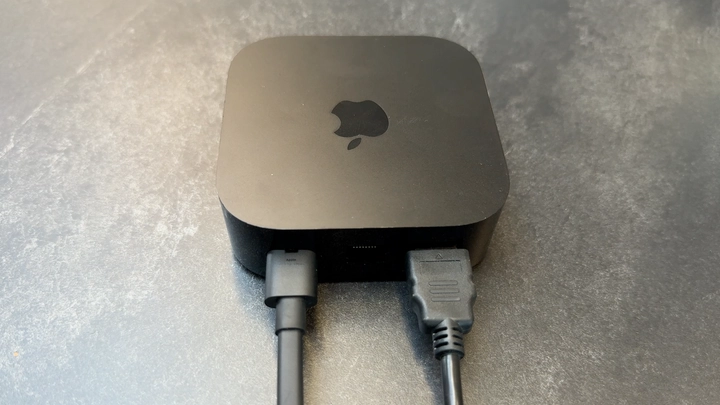
Connect power and HDMI to Apple TV
Connect Apple TV to power, then plug one end of the HDMI cable into Apple TV’s HDMI port.
Step 2
Connect the HDMI cable to the projector
Plug the other end of the HDMI cable into your projector’s HDMI input. Turn on the projector and select the appropriate HDMI input.
Step 3
Set up Apple TV
If Apple TV is new, follow Apple’s setup guide and its on-screen instructions using the remote. Connect your iPhone or iPad and Apple TV to the same Wi-Fi network.
Step 4
Connect your iPhone or iPad
Once your Apple TV is set up, grab your iPhone or iPad. Swipe down from the top right to open Control Center. Tap Screen Mirroring, then select your Apple TV to connect.
Step 5
Confirm the connection in IntelliSew
In the IntelliSew app, the projector icon should turn green. On your cutting surface, you should see an outline marking the projection area and a “Projector Connected” message.
Continue learning
Keep going with the next part of your setup or explore a related guide.